
Product feeds for Google, Meta and marketplaces, without spreadsheets
Since 26.3 Maho exports the catalog as XML, CSV or JSON with a visual builder, maps the channel categories and uploads over SFTP.
Anyone selling on Google Shopping knows the drill: the catalog has to be handed over in an exact format, with mandatory fields, categories translated into the channel taxonomy and prices formatted the way the platform demands. A spreadsheet maintained by hand holds up while the catalog is small, then it becomes a second job. Since 26.3 the Maho core carries FeedManager, which builds the file, keeps it current and ships it where it belongs.
Four rooms in one module
Everything starts from Catalog > Feed Manager, which opens on four sections:
- Feeds: the feeds themselves, one per channel;
- Dynamic Rules: conditional rules for computed values such as availability;
- Category Mapping: the match between store categories and platform ones;
- Destinations: the SFTP or FTP servers the file is uploaded to.
Global settings are in System > Configuration > Catalog > Feed Manager: module switch, output
directory (feeds inside media/ by default), products per batch (500), log retention in days (30) and
an error threshold in percent (10) past which generation stops.
The first feed in four steps
- General settings. Press Add New Feed and fill in name, template (Google Shopping with the XML format, for instance), the store view whose products and prices are exported, the file name and the status.
- Product selection. On the Filters tab decide what goes in: skip disabled products, skip anything out of stock, choose the product types and, if needed, add tighter conditions.
- Mapping. On the Mapping tab you build the file structure. It is the step that scares people, and the one the builder turns into mechanics.
- Preview and generate. The Preview tab runs the feed against a sample of products. Once the result looks right, Generate Now writes the whole file.
The mapping, up close
The XML builder is the one most stores need, because Google Shopping wants an Atom feed. The screen shows three levels: the header with the channel opening tags, the tag wrapping each product, and the structure of the single fields.
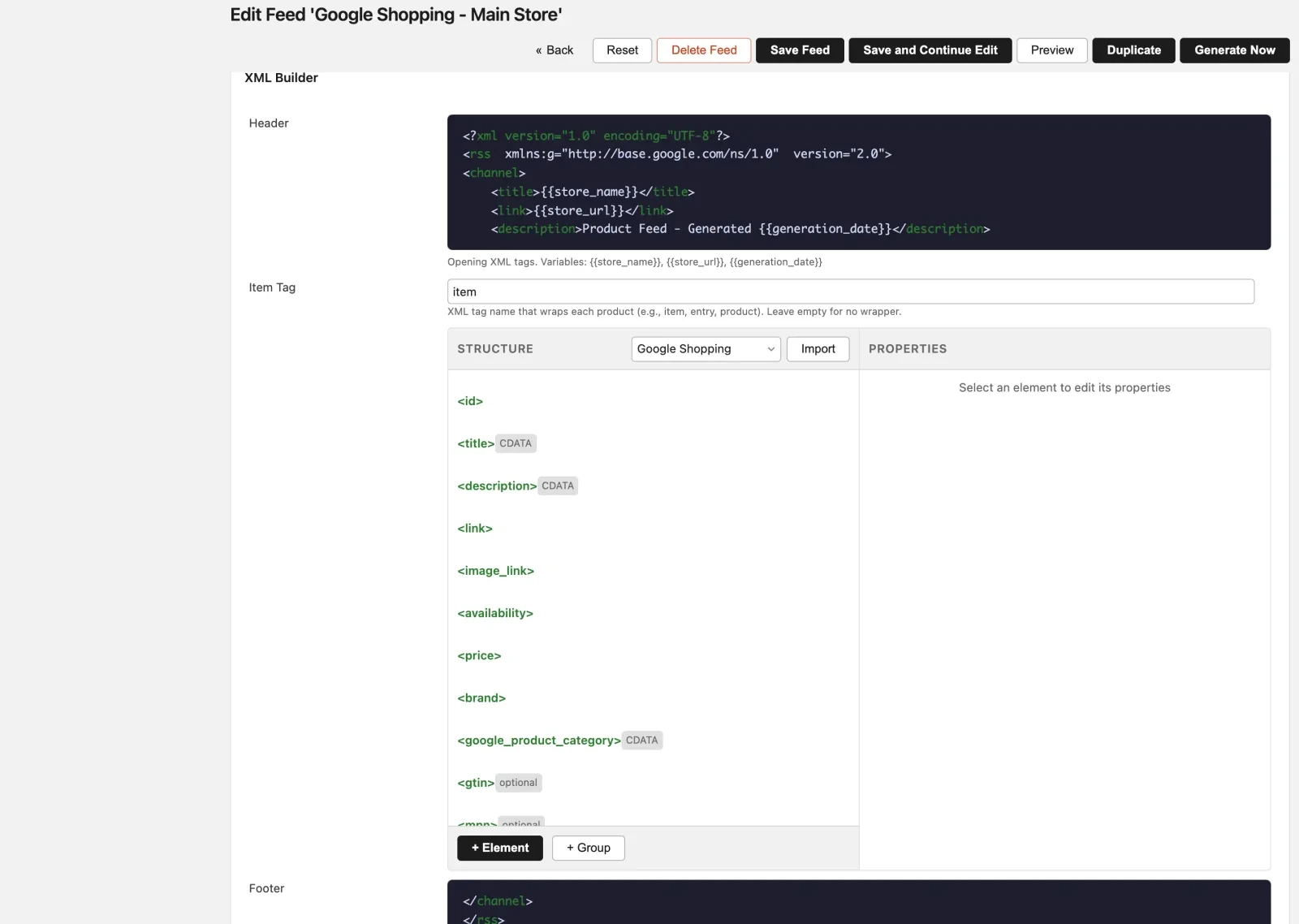
In the structure column every element needs a property, and the property can come from different
sources: a product attribute, the output of a transformer, a fixed value, a variable such as
{{store_name}} or {{generation_date}}. Beside each field sits the mark telling you whether it is
required, optional or in CDATA, so a format mistake shows before the file is uploaded.
The other formats work the same way: the CSV builder shows columns, the JSON builder shows an object tree. The shape changes, the method does not.
🛒 Note at the marketplace: the mandatory fields are a closed list per channel. The builder puts them in front of you, but what you write in
titleanddescriptionis still your call, and that is the part that moves sales.
The configurable product question
The choice that changes everything sits in the product types. For Google Shopping the usual setup is to
select Simple only: every variant becomes a feed row and the link back to the parent travels in
item_group_id. The alternative is exporting the configurable as one entry, but then the channel sees a
single product with a single price.
Grouped products, bundles, virtual and downloadable products leave as standalone entries, with no automatic nesting.
Categories are half the job
A feed with the wrong category is not rejected, it is simply shown to the wrong people. Catalog > Feed Manager > Category Mapping opens the map: pick the platform at the top, then look up the channel category for each store category. The search works by words, bulk mapping covers categories that share a branch, and a helper proposes the matches still missing.
The same map can serve more than one taxonomy at a time, because the channels change theirs, not your catalog.
Rules that compute values
A feed asks for things the catalog does not hold: availability as in stock or out of stock, a sale
price only while the sale runs, the format of a colour. Dynamic Rules settle that with a condition
and a result, and the module ships with a few ready for the recurring cases.
🛒 Note at the marketplace: a badly written rule does not show in the preview when the sample happens to skip the condition. Pick one product of each type before calling the job done.
Formats, prices and taxes
Every feed has its own regional settings: number format, currency, price handling and tax. That matters because the same company sells on Idealo in Germany, on Trovaprezzi in Italy and on Pinterest: the price format is not the same and the channel does not forgive.
Delivery
With a Destination in place the feed uploads itself after every generation. It is created under Catalog > Feed Manager > Destinations: name, SFTP or FTP, host, port, user, authentication with a password or a private key, remote path. In the feed you pick the destination, switch Auto Upload on and, if needed, gzip compression.
Notifications that stop you finding out late
Notifications are set per feed, with a method (none, email only, admin inbox only, both) and a frequency. The useful one is Once Until Success: one alert on the first failure, then quiet until the feed generates again, so a night time fault does not fill the mailbox with identical messages.
Three things trigger them: a failed generation, a failed upload, and a generation stuck for more than thirty minutes.
🛒 Note at the marketplace: a feed that generates but never arrives is harder to notice than a feed that does not generate. Turn notifications on for the upload, not just for the generation.
Schedule and command line
Scheduling is per feed: hourly, every six hours, once a day, twice a day, manual only. Whoever wants a specific hour uses the system cron with the module commands:
# every feed with its status
./maho feed:list

# generate one feed
./maho feed:generate 4

# generate every enabled feed
./maho feed:generate:all

# check a feed without regenerating it
./maho feed:validate 4
Generations scheduled in the admin go through Maho cron, so ./maho cron:run has to be running. A
scheduled feed that has not updated for days almost always means a stopped cron, not a broken feed.
Text prepared with the help of AI and checked against the source before publication. It can still contain mistakes: if you find one, report it.Read the manifesto
Does your store still sell?
Tell us where you are starting from: we reply with a first assessment, no strings attached.
Ask for the store assessment