
A visual merchandiser for categories, where the order of the products is set by dragging tiles
The products tab of a category gets a tile view with drag and drop, pinned products and bulk moves, and the storefront gains the Newest, Bestsellers and Most Viewed sorts.
Ordering the products of a category today means typing a number into a column, saving, leaving the admin and reloading the storefront to see whether the result works. With fifty products that is patience; with five hundred it is a job you postpone. Pull request #1868 changes how that work is done: instead of the grid, a wall of tiles you drag around.
What it adds
The products tab of a category, now called Products, gains a Grid and Tiles switch. The tile view shows the products as cards with image, name, SKU, price, stock status, units sold and revenue of the last days, position and pin, and from there the order changes in four ways: by dragging a tile, by typing the number in the position field, by pinning a product to its slot, or by selecting several tiles and using the bar that appears at the bottom of the screen. The row of the switch holds the search by name or SKU, the Out of stock only filter, Add product and Reset order.
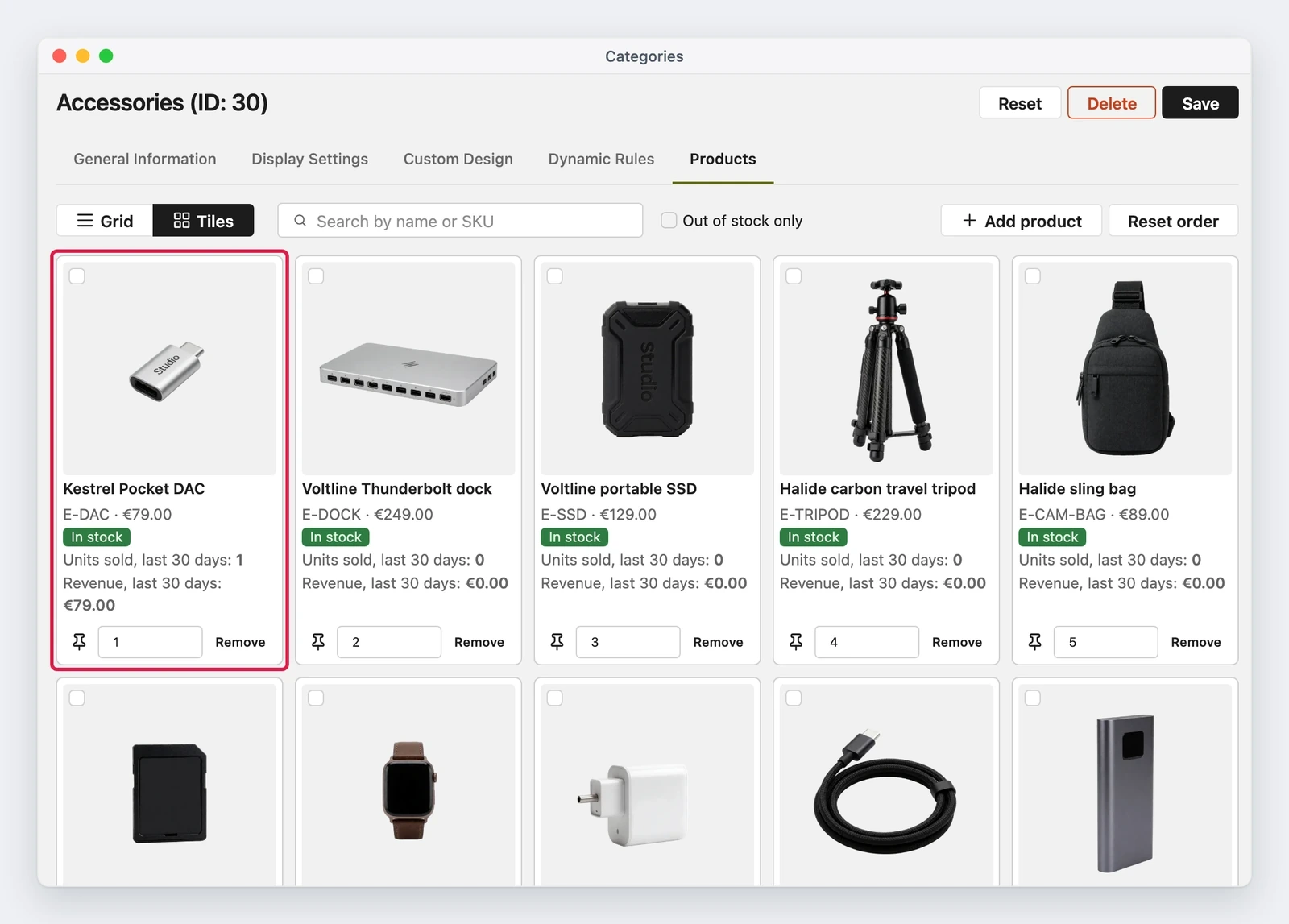
The pin is the part that solves the practical problem: a pinned product keeps its position number when other products enter the category, leave it or move, and the other tiles fill the free slots. The bar of bulk actions offers Move to top, Move to bottom, Move to position, Pin, Unpin and Clear selection, and while the order holds unsaved changes a line says so, with the Products tab marking the change like the other tabs of the category.
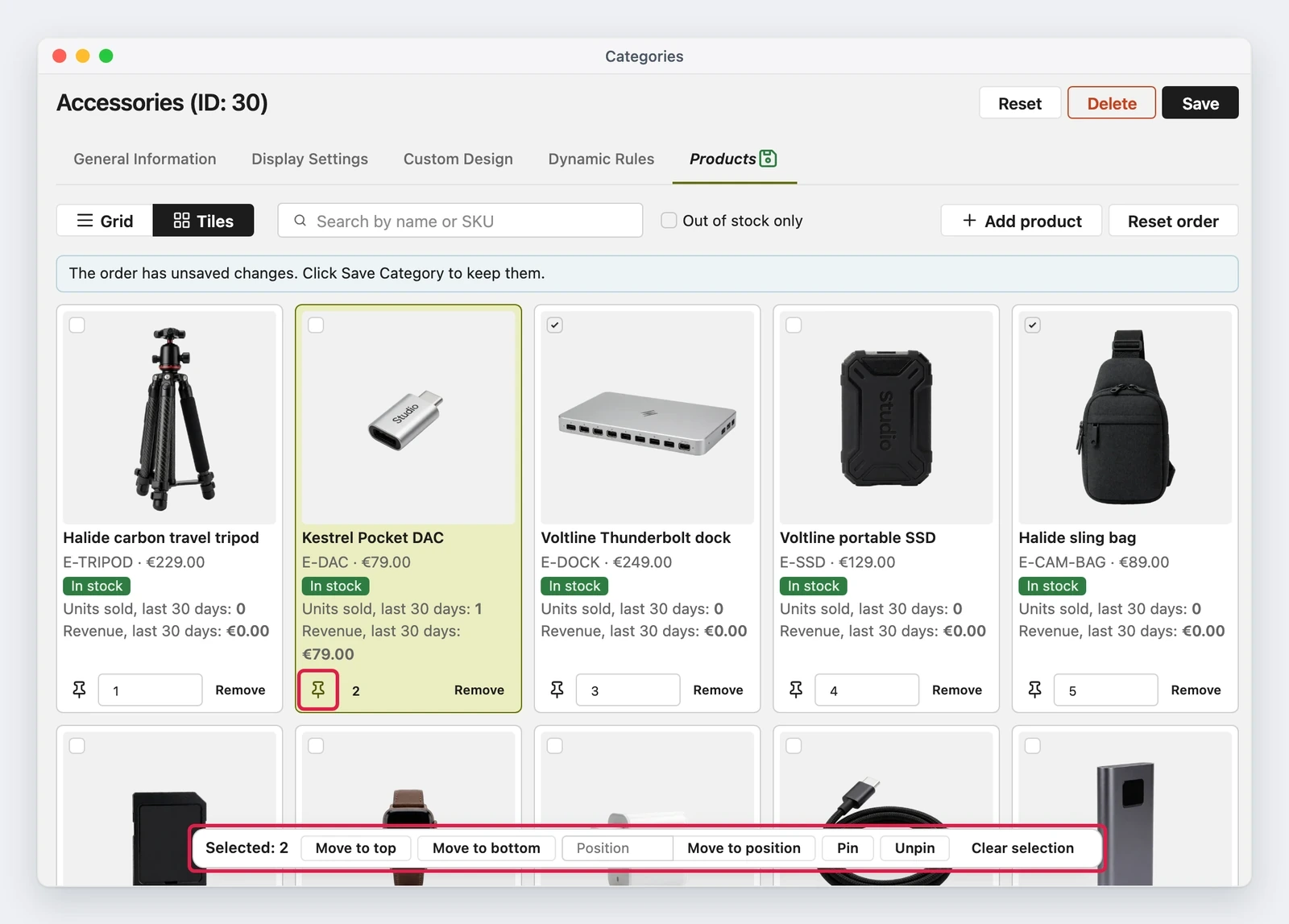
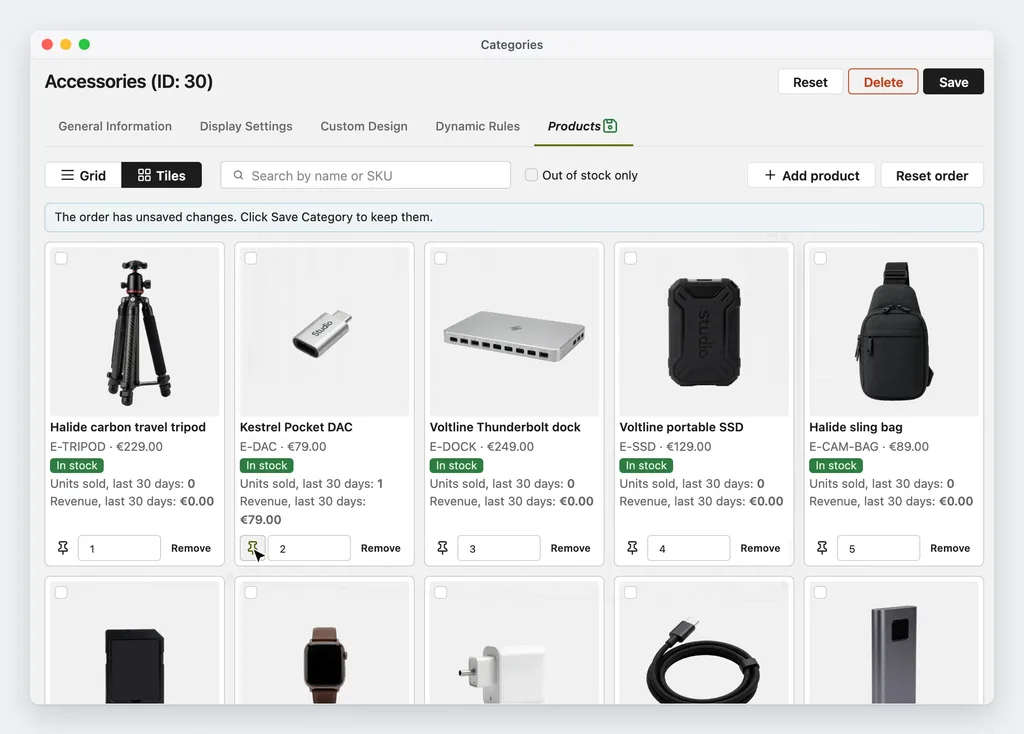
The animation shows the whole sequence: a tile dragged to the top, another pinned to its slot, two selected and moved to the top in bulk.
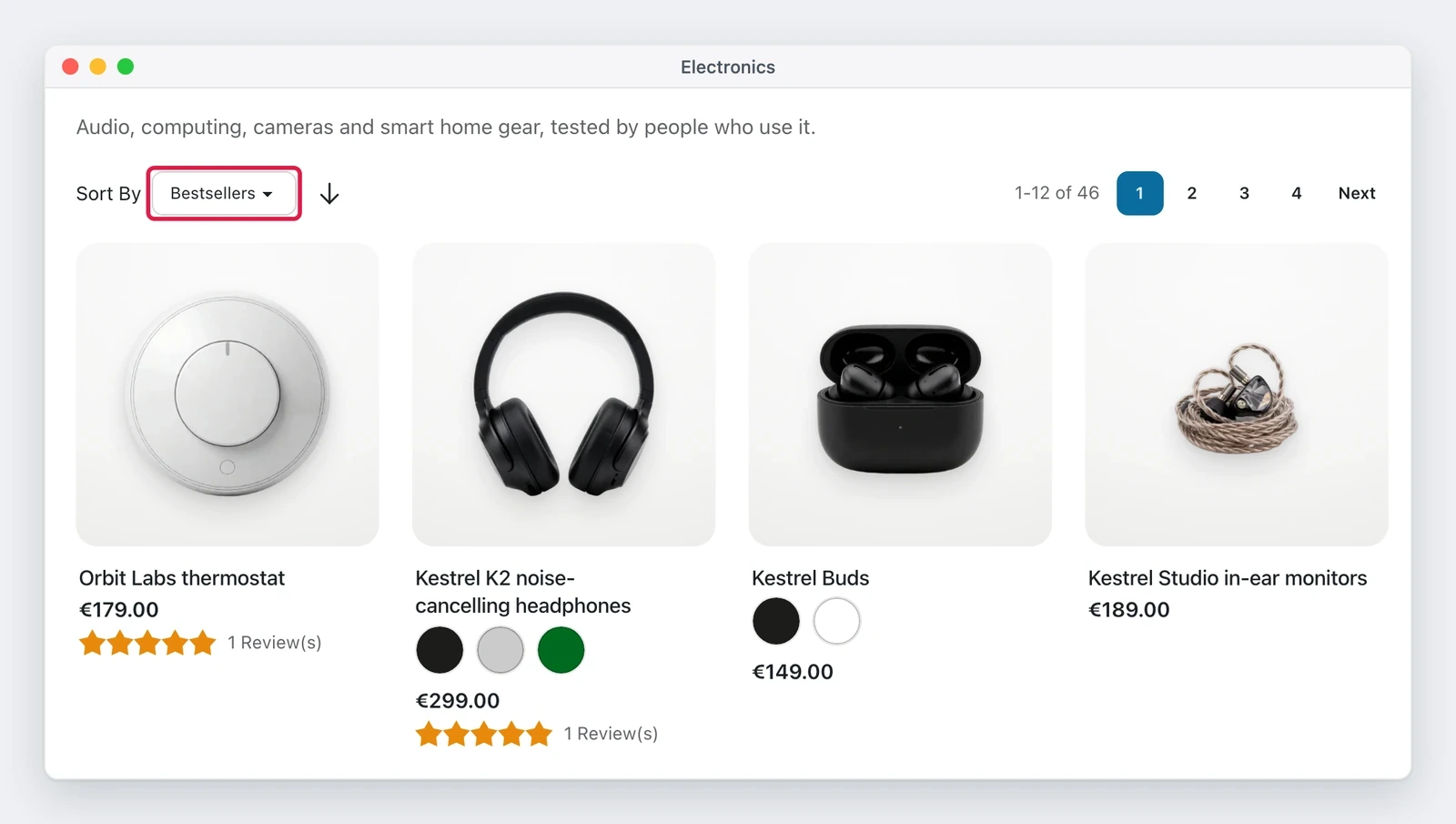
On the storefront side three sorts arrive: Newest, which reads the creation date of the product, Bestsellers, which reads the units sold, and Most Viewed, which reads the views of the product page. The last two count the last days, a number set in Days Counted by Bestsellers and Most Viewed, 30 by default, and a product with no sales or no views in that period goes last in both directions.
Two new settings sit on the Display Settings tab of the category: New Products Go To, which decides whether a product entering the category goes to the top or to the bottom, and Show Out of Stock Products Last, which puts the exhausted products after the available ones with any sort, without touching the positions, so a product returns to its slot when it is in stock again.
Why it matters
For whoever runs a store the gain is all in time: the order is built by looking at the products, not at the numbers, and a large category is arranged in a minute instead of a work session. The pin covers the case that used to be solved by hand at every arrival: the new products on top and the rest of the order where it was. Show Out of Stock Products Last clears the first page of the products that cannot be bought, without removing them from the category.
For whoever sells, the three automatic sorts are a way to stop having a category frozen at an order decided months earlier: Newest and Bestsellers follow the catalog and the sales on their own, and Most Viewed shows what people look at, which is not always what they buy.
What it needs
- The statistics have to be refreshed, because Bestsellers and Most Viewed read the data the statistics refresh prepares: the report cron jobs do it every night, and Reports > Statistics > Refresh Statistics does it now, with Refresh Statistics for the Last Day or Refresh Lifetime Statistics.
- Most Viewed appears only with Enable Reports and Enable Recently Viewed Products on, because without those settings the store records no views.
- The tiles are editable only when the category sorts by position, which the admin calls Best Value and the Sort By menu of the storefront calls Position. With another sort the tiles open read-only in the storefront order, with a line that says which setting to change.
- The tile images use the files the theme resizes: on a new install with the sample data they show
nothing until
./maho storage:image:resizeruns.
What can still change
The pull request is merged but not in a release yet, and the limits it declares hold for how it is today. The pin works only with the manual order. The two new settings are not in the REST and GraphQL category resource. With pins and New Products Go To set to Top of the list, a save rewrites the position of every product that moves, and in a large category that is a lot of rows. The line that marks the end of each page counts the tiles by rank and does not skip the products the storefront hides, a disabled one for example. The order is the same in all store views. In a dynamic category the badge that says a product was added by a rule shows on every product, and Add product and Remove are not there, because the rule decides what the category holds.
In the same work the tabs lose the repeated word: Category Products becomes Products and Dynamic Category becomes Dynamic Rules. Since Dynamic Category is also the name of an attribute group, the upgrade renames that group in every attribute set, and code that looks the group up by name has to use the new one. A theme that keeps its own copy of the toolbar template has to give the descending direction to the three new sorts, or they list the lowest value first.
AI is part of this too: the pull request declares AI assistance and the human review before the merge, like every other change in the core.
Status
The snapshot is from 21 November 2026. The pull request was merged on 20 November, touches 56 files across code, user guide and screenshots, and has not reached a release yet: whoever wants to see it today finds it in the repository documentation and in the demo store, and whoever waits for a version finds it in the next patch or in the next release, when they come out.
Text prepared with the help of AI and checked against the source before publication. It can still contain mistakes: if you find one, report it.Read the manifesto
Source: MahoCommerce/maho#1868
Does your store still sell?
Tell us where you are starting from: we reply with a first assessment, no strings attached.
Ask for the store assessment