
The European revocation button: how to configure it and put it on the site
Since 19 June 2026 directive 2023/2673 asks for a withdrawal button. Maho ships one since 26.7.0: configuration, widget and admin work.
European directive 2023/2673 amends the Consumer Rights Directive and asks online stores selling to
consumers in the Union for a button to withdraw from the contract, always reachable and without
friction. Germany transposes it as §356a BGB. The obligation applies from 19 June 2026, and the
Maho_Revocation module is the answer Maho ships in the core since 26.7.0, published on 21 July
2026.
This deep dive is practical: what the module does, how it is configured, where the button goes on the site and what happens when a customer uses it. It is not legal advice: the exact wording, placement and process belong with your counsel for the markets you sell into.
What it gives you
The module adds a complete withdrawal channel that stands on its own:
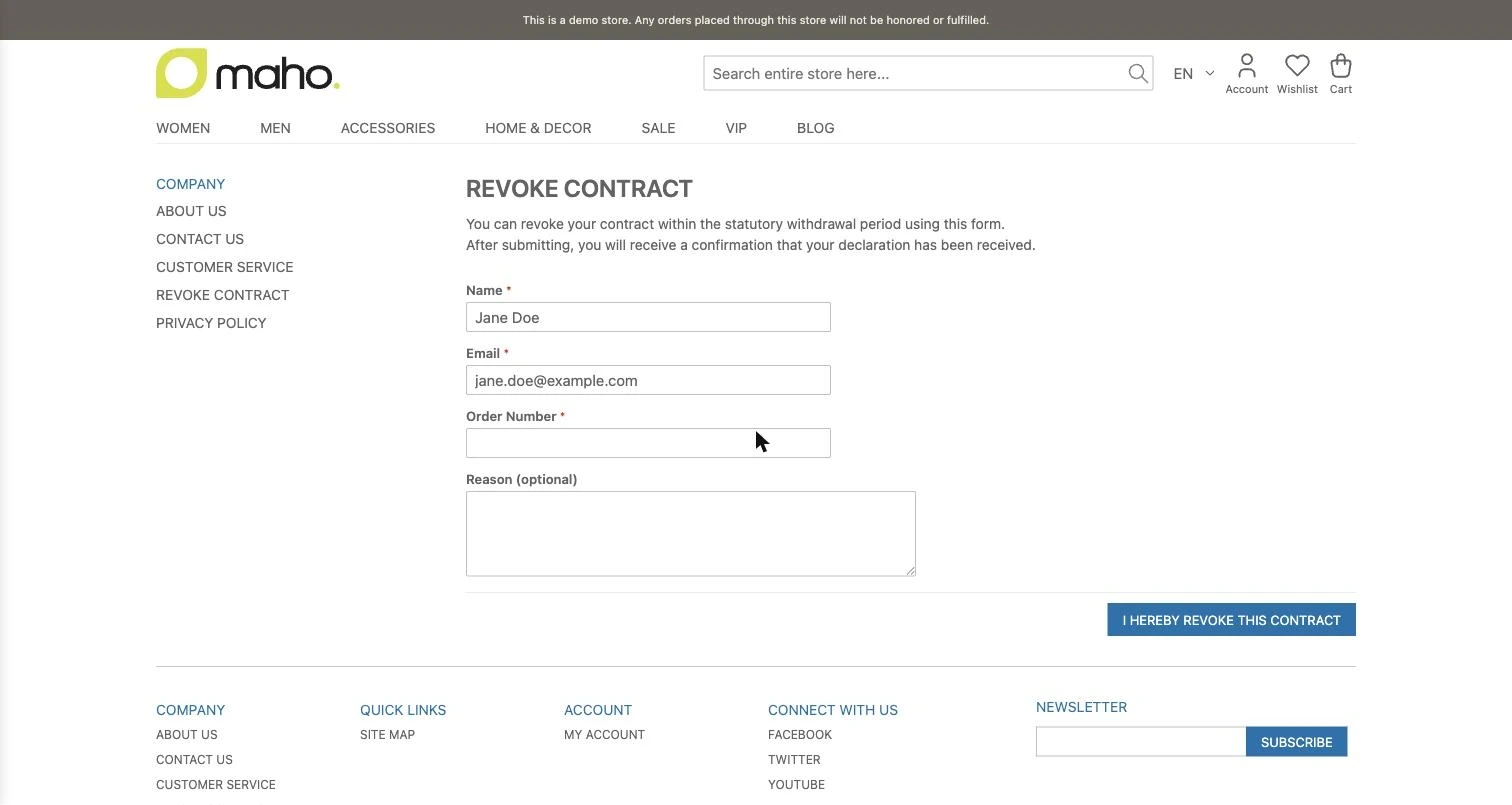
- a public form at
/revocation, reachable without a login, as the law requires; - a button widget to place, so the link stays visible for the whole period;
- a shortcut in the customer area, on the order page, which pre-fills the form;
- an immutable legal receipt, written to the database for every submission, even when emails fail;
- two automatic emails, a receipt to the customer and a notification to the merchant;
- a work queue in the admin under Sales > Revocation Requests, with a grid, a detail view, accept or reject, order linking, CSV export and mass actions;
- invisible abuse protection: honeypot, submit timing and rate limits, with no manual CAPTCHA and no email confirmation link, both of which are not admissible on this form.
Configuration
Everything lives in System > Configuration > Sales > Revocation Button, scoped to the store view. The module arrives switched off, because the obligation concerns stores selling to consumers in the Union: a store that does not need it should not have to turn it off.
The General group holds four settings:
- Enabled: the master switch. On its own it does not display the button, and the next step is required;
- Button Label: the text of the storefront button; empty means the translated label;
- Merchant Notification Email: where merchant notifications go; empty uses the general contact address;
- Cooling-Off Period (Days): the withdrawal period, 14 days by default. It gates the my-account
shortcut only, never the public form. It is measured from the latest shipment date when available,
or from the order date otherwise, and
0always shows the shortcut.
The Email group picks the sender identity, the customer receipt template and the merchant notification template. The merchant notification sets the customer address as Reply-To, so you can answer directly. The receipt must only confirm that the declaration was received: it must never state or imply that the revocation was accepted, because acceptance is a later decision of the merchant.
The Abuse Protection group holds four thresholds, set so they never stop a real customer: minimum
submit time (3 seconds), submissions per IP per hour (5), receipt emails per recipient per day (1) and
merchant notifications per store per hour (100). Each can be set to 0 to disable it, but tightening
them too far blocks valid declarations, which is the opposite of what the button is for.
Putting it on the site
Here is the part that surprises whoever enables the module and finds no button: enabling the module
does not display any link. It creates the form at /revocation, but the law asks for a visible
button, and only your theme knows where it belongs, usually the footer. So:
- go to CMS > Widgets, add a widget and choose the Revocation Button type with your theme;
- add a Layout Update with a location that shows site-wide, for example all pages into your footer container, or a footer static block reference;
- optionally set a Custom Label; when it is empty, the label from the configuration applies.
The widget renders a single <a class="revocation-button">, so the surrounding markup and the styling
stay with the theme. A manual link of your own works too: what matters is that the public form is
reachable without friction.
The second integration is automatic: with the module on, the order page in My Account > Orders shows Revoke this contract, as long as the order is inside the configured withdrawal period. That link pre-fills the form and marks the resulting request as verified.
What happens when a customer withdraws
The order of operations is what makes the module defensible. The row in revocation_request is written
first, and nothing that follows (emails, order comments) can abort the flow: if the receipt does
not go out, the declaration stands and the admin can resend it. The row holds a UTC timestamp, the IP
address, the user agent and the locale, and it is not edited after insert.
Requests come in two shapes. Verified means the customer used the shortcut on their own order while signed in, and order ownership is re-checked on the server. Unverified is every submission from the public form, even when the order number, name and email all match: the request is linked to the order for your convenience, but it stays unverified, and that is right, because a self-asserted declaration must never lift itself to verified.
The admin workflow
Under Sales > Revocation Requests two ACL permissions apply: View Requests for read access and Process Requests for notes, accept or reject, order linking, resending and mass actions.
The grid shows the id, the received timestamp, the store view, the verified flag, the customer name and email, the order reference and the linked order, any email suppression, the processed status and the processed date, with filters, sorting, CSV export and mass actions to accept or reject several requests at once.
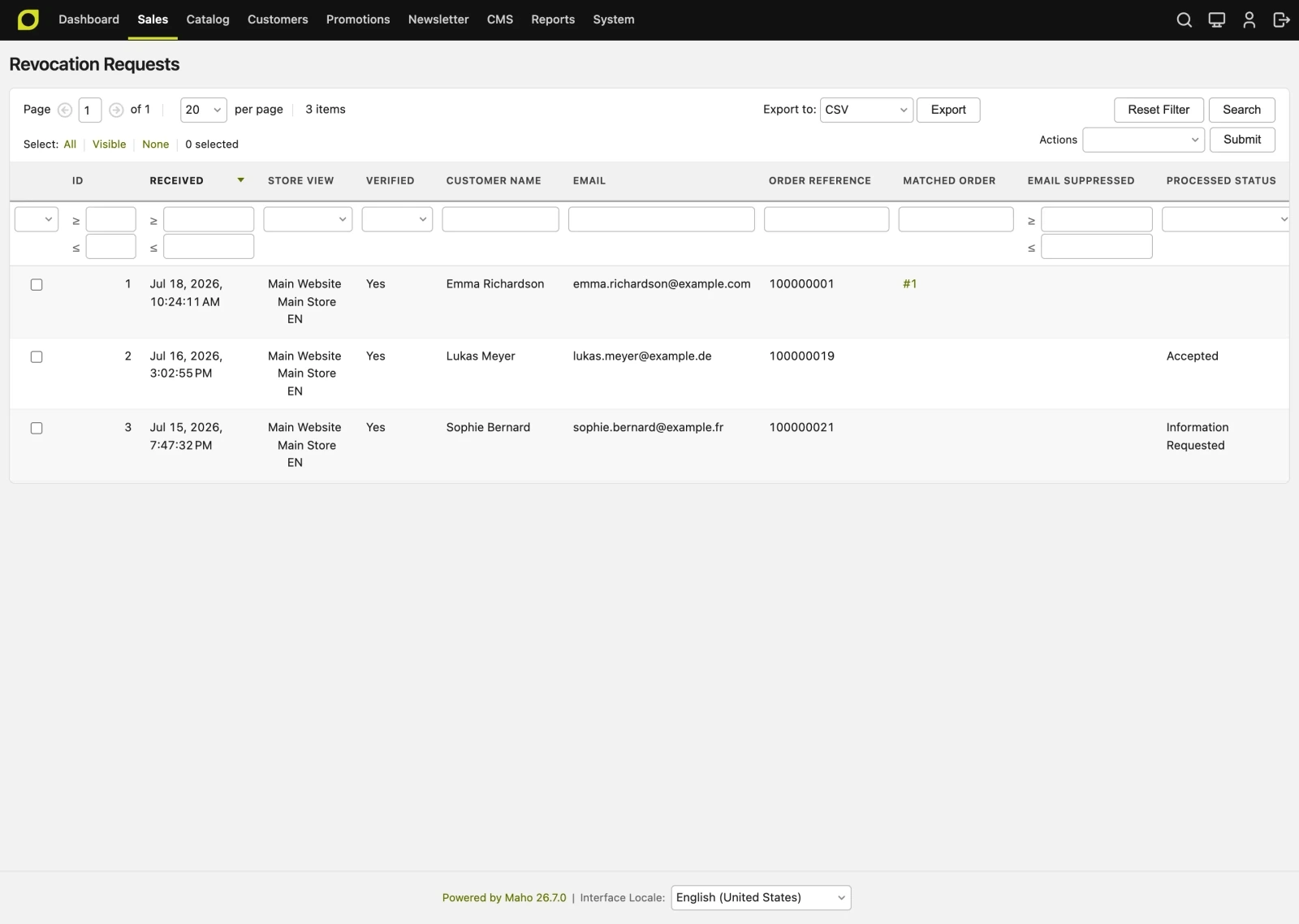
From a single request you can save an internal note, accept or reject, link an order when the automatic match did not resolve, and resend the receipt, which also clears a rate-limit suppression and leaves a trace in the note log.
Two things to keep in mind: accepting or rejecting does not change the order status and issues no refund, it only adds an audit comment to the order history; when the order can still take a credit memo, the detail view offers the link to create one, so the refund goes through the standard flow and the money stays under your control. And mass actions change the request rows only: order-level work is done one request at a time, where the linked order is visible.
Customising
- form and button: override
revocation/form.phtmlandrevocation/button.phtmlin your theme; - emails: copy the
revocation_receivedandrevocation_merchant_notificationtemplates in System > Transactional Emails and pick them in the configuration, keeping the receipt versus acceptance distinction; - translations: the strings live in
app/locale/en_US/Maho_Revocation.csv; the module ships in English and every string is translatable, so the German §356a wording or any other language comes in with a language pack.
In short
The module does the hard part: a form that is always reachable, a receipt that does not get lost, an orderly work queue and abuse protection that asks the customer nothing. The rest is two steps that stay with whoever runs the store: switch it on in the configuration and place the widget where the theme shows the footer. From the next day, the only new habit is checking Sales > Revocation Requests the way you check the mail.
Text prepared with the help of AI and checked against the source before publication. It can still contain mistakes: if you find one, report it.Read the manifesto
Source: Release 26.7.0
Does your store still sell?
Tell us where you are starting from: we reply with a first assessment, no strings attached.
Ask for the store assessment